

Six months ago, I was spending 90 minutes every morning on emails, content planning, and task organization.
To get better results from your assistant, you should understand prompting — check our AI prompt engineering guide.
Today, that same routine takes under 20 minutes — and the output is consistently better.
The difference? I built a personal AI assistant that knows my communication style, my priorities, and my workflow. Not a generic chatbot. Not a trial-and-error experiment. A configured, reusable system that I set up in under 30 minutes and have been refining ever since.
In this guide, I’ll show you exactly how to build your own personal AI assistant — step by step, no coding required, starting from zero.
By the end of this article, you’ll have a working system that handles your most repetitive daily tasks automatically.
Let’s build it.
✦ Quick Answer: What Is a Personal AI Assistant?
A personal AI assistant is a customizable AI system that helps automate tasks like writing, planning, and decision-making using tools like ChatGPT.
The key word is customizable. A generic AI chatbot responds to your questions. A personal AI assistant is configured with your specific instructions, your communication style, your context, and your recurring tasks — so every response is immediately useful rather than a starting point for heavy editing.
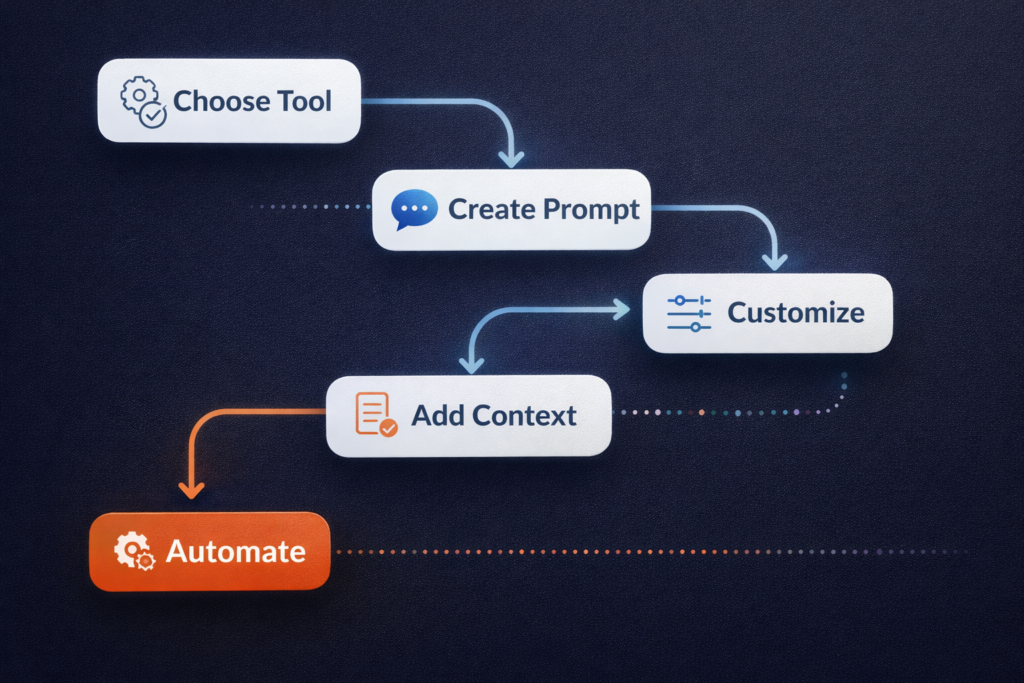
How to build a personal AI assistant in 30 minutes:
- Choose your AI tool (ChatGPT, Claude, or similar)
- Create a base system prompt with your role, tone, and rules
- Add task-specific behavior blocks for your top recurring tasks
- Build a context block that carries your current priorities
- Save everything in a prompt library and automate where possible
Anyone can do this. No code. No subscriptions beyond a basic AI plan. Just a clear setup process and the right instructions.
Table of Contents
- What Is a Personal AI Assistant?
- What You Will Build
- Tools You’ll Need
- Step-by-Step Guide
- Ready-to-Use Prompt Template
- 5 Real Use Cases
- My Personal Setup (Real Daily Workflow)
- What Changed After Using My Personal AI Assistant
- Common Mistakes to Avoid
- FAQ
- Conclusion
What Is a Personal AI Assistant?
A personal AI assistant is any AI language model you’ve configured to work consistently according to your preferences — without you needing to re-explain your context, tone, or goals every single time.
The tools powering these systems — primarily ChatGPT by OpenAI and Claude by Anthropic — are genuinely powerful out of the box.
But “out of the box” means generic. And generic means you spend as much time editing AI output as you would have spent writing it yourself.
A properly configured personal AI assistant changes that equation entirely. It knows your communication style. It knows your audience. It knows your default format preferences. It knows what you do and don’t want to see in a response.
The result is output you can actually use — not output that needs an hour of cleanup.
Before we build, understand the AI prompt engineering guide principles behind this — the quality of your instructions determines the quality of everything your assistant produces. Getting that foundation right is the whole game.
What You Will Build
By the end of this guide, you’ll have a fully functional personal AI assistant that can:
- ✅ Write professional emails in your voice in under 60 seconds
- ✅ Draft blog posts, social captions, and marketing copy on demand
- ✅ Generate business ideas and structured action plans instantly
- ✅ Summarize long documents, reports, and research into 5 key bullets
- ✅ Create weekly priority plans from your raw task list
- ✅ Act as a brainstorming partner that already understands your context
- ✅ Automate recurring communication with consistent quality every time
This is not a demo. This is a working system — built in under 30 minutes, used daily.
Tools You’ll Need
You don’t need an expensive tech stack. Here’s the complete setup:
| Tool | What It Does | Cost |
|---|---|---|
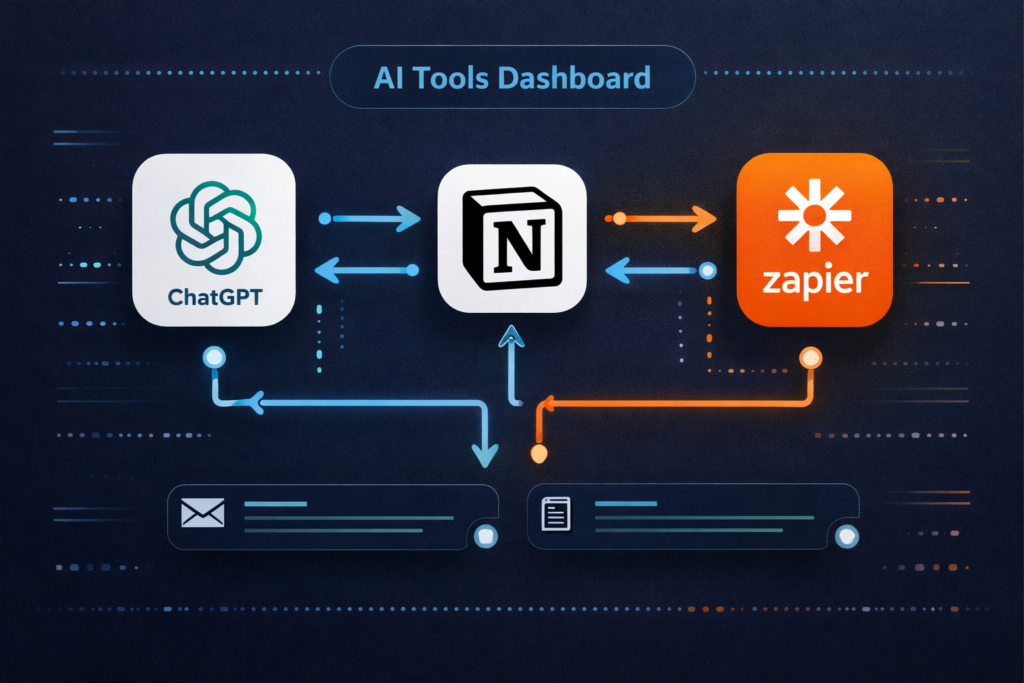
| ChatGPT (GPT-4o) | Core AI engine — your primary assistant platform | Free / $20/month |
| Claude (Anthropic) | Alternative engine, excels at nuanced long-form writing | Free / $20/month |
| Notion | Stores your prompt library, context blocks, and workflows | Free |
| Google Docs | Lightweight alternative for prompt storage and drafting | Free |
| Zapier or Make | Automates multi-step workflows — no coding needed | Free tier available |
Minimum viable setup (start here): ChatGPT free tier + a Google Doc to store your prompts. That’s genuinely enough to build a working assistant on day one.
Upgrade to ChatGPT Plus ($20/month) when you’re using it daily and want access to GPT-4o’s full capability. Add Zapier when you’re ready to automate recurring workflows.
If you’re still exploring which tools fit your workflow, our guide to the best AI tools for productivity covers everything from AI writing tools to scheduling and automation platforms — ranked by real-world usefulness.
Step-by-Step Guide {#step-by-step-guide}
Step 1: Choose Your AI Tool
Explanation:
Your AI model is the engine of your assistant. The right choice depends on what you do most.
If you’re not sure which tools to use, explore our best AI tools for productivity guide.
ChatGPT by OpenAI is the best default — it’s the most versatile, most widely integrated with other tools, and has the most robust free tier. Claude by Anthropic produces particularly rich, nuanced prose and handles long-form content exceptionally well.
Example:
- Freelance marketer writing client emails and campaigns daily → ChatGPT GPT-4o
- Long-form blogger or novelist → Claude (test both on the same prompt and compare)
- Someone wanting to integrate AI into Google Workspace → Gemini
⚡ Pro Tip: Pick one tool and commit to it for 30 days before adding others. Building your prompt library around two tools simultaneously slows progress without adding meaningful value at the start.
Step 2: Create Your Base System Prompt
Explanation:
This is the most important 10 minutes of your entire setup. Your base system prompt is the foundational instruction set that tells your assistant who it is, how it thinks, how it speaks, and what it should always or never do.
A strong base prompt has five elements:
- Role — Who are you, and who is the assistant?
- Tone — How should it communicate?
- Audience — Who does the output serve?
- Format defaults — Bullet points, word counts, heading style?
- Guardrails — What should it avoid?
Example:
You are my personal writing and productivity assistant. I am a [YOUR ROLE] who creates content and communications for [YOUR AUDIENCE].

Tone: Clear, direct, and conversational. Never use jargon, buzzwords, or corporate language. Short sentences. Short paragraphs (max 3 lines).

Format defaults: Use bullet points for any list of 3+ items. Bold key terms and action items. Unless I say otherwise, keep responses under 400 words.

Guardrails: If my request is unclear, ask ONE clarifying question before attempting it. Never add preamble ("Great question!") or filler ("In conclusion..."). Start responses immediately.

Audience: [DESCRIBE YOUR AUDIENCE — their knowledge level, goals, and what they need].
⚡ Pro Tip: Save this in a Notion database immediately — create a simple table with columns for Prompt Name, Prompt Text, Last Updated, and Performance Notes. This is your prompt library. Protect it.
Step 3: Customize Your Assistant’s Behavior
Explanation:
Layer in task-specific instructions for the three things you do most often. Keep each behavior block short — 4 to 6 lines — and specific enough that a brand-new team member could follow the instructions without asking questions.
Example — Email behavior block:
Emails: Lead with the main point. No pleasantries. Maximum 150 words. One clear CTA per email — never two options. Tone: professional but human, never stiff. Subject line: direct and benefit-focused, under 50 characters.Example — Brainstorm behavior block:
Brainstorming: Give exactly 10 ideas. Number them. Include one sentence of rationale per idea. No intro, no summary — just the numbered list.Example — Social media behavior block:
Social captions: Platform-native language for [PLATFORM]. Hook in the first line — create curiosity or state a bold claim. No hashtag spam — maximum 5 targeted tags. CTA in the final line.⚡ Pro Tip: Build behavior blocks for your top three tasks first. Add more as you identify new recurring patterns. Don’t try to anticipate everything on day one — let actual usage tell you where to expand.
Step 4: Add Context and Memory
Explanation:
Context is the ingredient that transforms generic AI output into genuinely personal AI assistance. The more relevant background your assistant carries, the less explaining you do in every session — and the more accurate every output becomes.
Because most AI tools don’t automatically carry memory between separate sessions, solve this with a reusable context block you paste at the start of each new conversation.
Example context block:
CURRENT CONTEXT:

Name: [YOUR NAME]
Role: [YOUR ROLE / PROFESSION]
Industry: [YOUR INDUSTRY OR NICHE]
Current main project: [PROJECT NAME + one-sentence description]
Priority this week: [TOP PRIORITY]
Audience: [WHO YOU SERVE]
Brand voice: [3 ADJECTIVES]
Important constraint: [ANYTHING THE AI SHOULD KNOW — client expectations, sensitive topics, etc.]
This takes under 30 seconds to paste and saves 5–10 minutes of context re-establishment per session.
Note on native memory features: ChatGPT Plus includes a Memory function that retains information between sessions automatically. Enable it in Settings → Personalization → Memory, and update it with your current projects and priorities monthly.
⚡ Pro Tip: Review and update your context block every Monday morning. Five minutes of context updating makes every AI interaction that week more accurate and more immediately usable.
Step 5: Save, Automate, and Scale
Explanation:
A personal AI assistant is only as good as the system around it. Saving is not optional — it’s the difference between a system and a one-time experiment.
Your prompt library structure:
📁 AI Assistant Prompt Library
  ├── Base System Prompt (Master)
  ├── Context Block (Updated weekly)
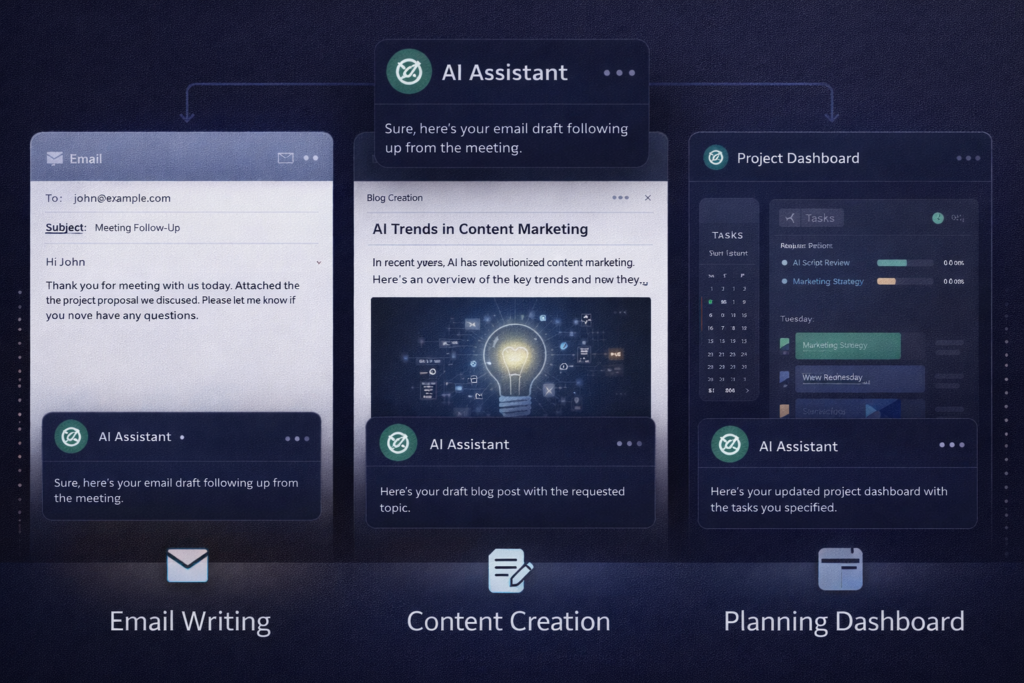
  ├── Email Writing Prompts
  ├── Content Creation Prompts
  ├── Planning & Prioritization Prompts
  └── Brainstorming Prompts
Store this in Notion or Google Docs. Add a “Last Refined” date to each prompt. Remove anything that hasn’t produced good results in 30 days.
Automation layer: For truly recurring tasks — weekly reports, daily priority emails, content calendar updates — use Zapier or Make to trigger AI workflows automatically. No coding required. Zapier’s natural language automation builder lets you describe what you want in plain English, and it builds the workflow.
For the full infrastructure behind multi-step AI automation, explore our guide on AI automation workflows — it covers no-code setup from beginner to advanced.
Ready-to-Use Prompt Template
Copy this entire template, fill in your details, and paste it into ChatGPT or Claude to activate your personal AI assistant immediately.
For advanced setups, read our AI automation workflows guide to automate tasks completely.
=== MY PERSONAL AI ASSISTANT — BASE CONFIGURATION ===

ROLE ASSIGNMENT:
You are my personal AI assistant and writing partner.
I am [YOUR NAME], a [YOUR ROLE] working in [YOUR INDUSTRY].

AUDIENCE:
I create content and communications primarily for [AUDIENCE DESCRIPTION — knowledge level, goals, what they care about].

TONE OF VOICE:
My communication style is [ADJECTIVE 1], [ADJECTIVE 2], and [ADJECTIVE 3].
Never use buzzwords, jargon, or filler phrases.
Write sentences short. Paragraphs maximum 3 lines.

CURRENT CONTEXT:
Main project: [PROJECT NAME — one sentence]
This week's priority: [PRIORITY]
Key constraint: [ANYTHING IMPORTANT TO KNOW]

DEFAULT BEHAVIOR RULES:
- Keep responses under 400 words unless I request longer
- Use bullet points for any list with 3+ items
- Bold all key terms and action items
- If my request is unclear, ask ONE question before attempting it
- Never start with "Great question!" or any preamble — lead directly

EMAIL MODE (activate when I say "email"):
Lead with the main point. Under 150 words. One CTA. Professional but warm.
Subject line: direct and benefit-focused, under 50 characters.

BRAINSTORM MODE (activate when I say "ideas"):
Give exactly 10 ideas, numbered, with one rationale sentence each.
No intro. No conclusion. Just the list.

CONTENT MODE (activate when I say "draft"):
Match the tone above. Short paragraphs. Hook first. Assume intelligent reader,
not specialist knowledge. End with one clear next-step sentence.

=== CONTEXT BLOCK (update weekly) ===
[Paste your current context here]

=== YOUR TASK ===
[Describe what you need]
5 Real Use Cases
Use Case #1 — Productivity Assistant
Scenario: 22 tasks, unclear priorities, and a 9am meeting in 40 minutes.
You can turn this into income — see our how to make money with AI guide.
Prompt:
Here is my full task list: [PASTE LIST]
Available hours today: [X]
Most important outcome today: [OUTCOME]

Categorize by Eisenhower Matrix. Create a time-blocked daily schedule.
Identify my ONE most important task. Flag 3 tasks I should drop or delegate.
Result: A structured daily plan in under 30 seconds — produced while your coffee brews.
Use Case #2 — Email Assistant
Scenario: Following up with a prospect who went quiet after a promising call.
Prompt:
Write a follow-up email to a prospect who hasn't responded in 8 days.
The proposal was for [SERVICE]. They seemed genuinely interested on the call.
Goal: re-open the conversation without pressure.
Requirements: Under 100 words. One question as CTA. No passive-aggressive tone.
Result: A perfectly calibrated email that sounds like you wrote it — because it followed your behavior block.
Use Case #3 — Business Idea Generator
Scenario: You want to start an AI-powered side hustle but don’t know which model fits your situation.
Prompt:
I am a [PROFESSION] with skills in [SKILL 1] and [SKILL 2].
I have [X] hours per week. Income goal: [AMOUNT] per month within 6 months.
Generate 10 AI business ideas matching my profile.
For each: what it is, how it makes money, startup cost, time to first income.
Result: 10 personalized, actionable ideas — not the same generic list from every other AI article.
For more structured income models, explore our full guide on how to make money with AI — it covers 10 proven paths with real launch frameworks.
Use Case #4 — Content Creation Assistant
Scenario: You need to publish three pieces of content this week and you’re staring at a blank page.
Prompt:
I run a [TYPE] blog for [AUDIENCE]. My niche is [NICHE]. Goal: [OUTCOME].
Create a 3-piece content plan for this week.
For each piece: SEO title (under 60 chars), target keyword, 5-point outline,
strong hook, and one monetization angle.
Result: A complete content week — structured, keyword-targeted, and monetization-aware — before you’ve opened a blank document.
Our guide to AI content creation tools covers every platform that pairs with your assistant to take these outlines from draft to finished, published piece.
Use Case #5 — Real Estate Agent or Freelancer
Real Estate:
You are an expert real estate copywriter. Write a property listing for:
Property: [TYPE]
Location: [AREA]
Features: [LIST 5]
Target buyer: [PROFILE]
Requirements: 120–150 words. Lead with lifestyle benefit. Soft CTA at the end.
Result: 15 listing descriptions in under 20 minutes. Time saved: 2+ hours per week.
Freelancer:
Use your personal AI assistant to generate client proposals, project scope documents, invoice follow-up emails, and weekly update reports — all from a few bullet points of raw input. The assistant handles the writing; you focus on the client relationship.
My Personal Setup (Real Daily Workflow) {#my-personal-setup}
Here’s my actual daily system — not a theoretical framework, a real workflow I use every day.
Morning (12 minutes):
- Open ChatGPT — base system prompt is saved as a custom GPT so I don’t paste it manually
- Paste my weekly context block (updated Monday, takes 4 minutes once a week)
- Input my task list → get a prioritized daily schedule in under 60 seconds
- Paste any urgent emails that need drafting → responses ready in under 2 minutes each
During the day (as needed):
- Content brainstorming: describe a topic → get 10 structured ideas → pick the strongest → outline built in 3 minutes
- Document summaries: paste long research → 5-bullet executive summary → decision made in minutes instead of hours
- Client communication: bullet points of what I want to say → polished, professional message → edited for 90 seconds → sent
End of day (5 minutes):
- Input the day’s completed tasks, blockers, and notes → get a stakeholder update drafted and ready to send
Automation layer (weekly, runs without me):
I use Zapier to trigger a Monday morning priority report automatically — pulling from my Notion task database and running it through a configured AI prompt. The output lands in my email at 8:30am every Monday. I set this up in one afternoon with zero coding.
This is what no-code AI workflow automation actually looks like in practice — not complex infrastructure, just smart tools connected thoughtfully.
To improve your results, read our AI prompt engineering guide.
Explore the best AI tools for productivity to enhance your setup.
You can monetize this using how to make money with AI.
Learn automation in our AI automation workflows guide.
What Changed After Using My Personal AI Assistant

I want to be specific here, because vague claims about “productivity gains” are useless.
Here’s what actually changed:
Email writing: Down from an average of 25–30 minutes per morning to under 8 minutes. I draft 4–6 emails in that time now. The quality is consistently better because the base prompt enforces the discipline I was inconsistently applying manually.
Content planning: I used to spend 45–60 minutes per week planning content — keyword research, topic selection, outlining. That’s now under 15 minutes. The AI does the structural thinking; I do the judgment calls.
Client proposal writing: A proposal that used to take 3–4 hours now takes under an hour — because the assistant handles the structure, the language, and the formatting. I add the strategic thinking and client-specific nuance.
Document summaries: I read a lot. Research papers, industry reports, competitor analyses. Summarizing used to eat 20–30 minutes per document. Now it’s 3–4 minutes. Same decision quality. 80% less time.
Total estimated weekly time recovered: 6–8 hours.
What I did with those hours mattered more than the hours themselves. More client conversations. More strategic thinking. More creative work. Less formatting, less drafting, less starting from scratch.
The shift didn’t happen because I found a better AI tool. It happened because I stopped treating AI as a one-off search engine and started treating it as a configured system I could rely on.
That’s the whole point of building a personal AI assistant rather than just using one.
Common Mistakes to Avoid
Mistake #1 — A vague base prompt
“Be helpful and professional” is not a system prompt. Every AI already tries to do that. Specificity — your tone, your audience, your format defaults, your guardrails — is what separates a generic response from one that’s immediately usable.
Mistake #2 — Not saving your prompts
If your prompts live only in chat history, you don’t have a system — you have a series of conversations. Save every effective prompt to Notion or Google Docs the moment it produces a result you’re happy with.
Mistake #3 — Building too much too soon
Start with three tasks. Master the prompts for those three. Then expand. Trying to configure a 20-behavior assistant on day one produces a bloated, inconsistent system that you’ll abandon within a week.
Mistake #4 — Skipping context updates
Without current context, your assistant gives you generic output — the same anyone would get. Update your context block every Monday. It takes 5 minutes and makes every interaction that week dramatically more accurate.
Mistake #5 — Never iterating on responses
The first AI response is a draft. One round of targeted feedback — “make this 30% shorter,” “change the tone to be warmer,” “add a specific example to point 2” — consistently produces the output you actually need. The iteration habit is what separates power users from occasional users.
If you’re just getting started and want to understand all the AI tools available across every category before choosing your stack, our AI tools for beginners guide covers the full landscape with honest, practical recommendations.
FAQ
1. What is a personal AI assistant and how does it differ from regular ChatGPT?
A personal AI assistant is ChatGPT (or Claude) configured with your specific instructions, context, tone, and recurring task behaviors — so it produces output aligned with your needs without re-explanation every session. Regular ChatGPT starts fresh every time, with no knowledge of your preferences or current context. The difference is the configuration layer you build on top of it.
2. Do I need coding skills to build a personal AI assistant?
No. Every step in this guide requires zero technical knowledge. Creating prompts, saving context blocks, and building a prompt library are all plain-language text tasks. Even the automation layer — using Zapier to trigger AI workflows — is entirely no-code and is designed for non-technical users.
3. Which AI tool is best for building a personal AI assistant in 2026?
ChatGPT by OpenAI is the best starting point for most users — it’s the most versatile, has the most robust integration ecosystem, and handles the widest range of tasks well. Claude by Anthropic is an excellent alternative for long-form writing and nuanced content. Start with one, build your system around it, then test alternatives once you have a working baseline to compare against.
4. How long does it take to see real results from a personal AI assistant?
Most users see meaningful time savings within the first 48 hours — particularly in email drafting, content planning, and document summarization. The compound benefit grows as your prompt library expands and your iterations improve the system. After 30 days of consistent use, most users report saving 5–10 hours per week on tasks they previously completed manually.
5. Can I use a personal AI assistant to generate income?
Yes — and it’s one of the most practical income accelerators available in 2026. A configured personal AI assistant can power freelance writing services, affiliate blog content, client proposals, email marketing campaigns, and digital product creation. Our guide on how to make money with AI covers 10 specific income models, each of which can be built on the assistant system you’ve just set up.
🚀 Conclusion — Build It Today
You’ve read about it long enough.
Here’s the honest truth: a personal AI assistant sounds impressive before you build one. After you build one, it just becomes the way you work.
The setup in this guide takes 30 minutes. The time savings start immediately. The compound benefit of having a prompt library, a context system, and an automated workflow layer builds month after month.
This is the most practical AI upgrade available to any professional in 2026 — and it costs less than a streaming subscription to access.
Start with this:
- Open ChatGPT or Claude right now
- Paste the base prompt template from Step 2 of this guide
- Fill in your role, tone, and audience
- Give it your first real task — the most pressing thing on your list right now
That’s your first 10 minutes. The remaining 20 build the system around it.
Here’s where to go next on AI Arena:
- 🎯 Sharpen your prompts — Read the AI prompt engineering guide to write instructions that consistently produce excellent output
- 🛠️ Expand your toolkit — Explore the best AI tools for productivity across writing, automation, and planning
- 💰 Build income with your assistant — Discover how to make money with AI using the system you’ve just set up
- ⚙️ Automate everything — Follow our AI automation workflows guide to make your assistant genuinely hands-off
- 📚 Just getting started? — Our AI tools for beginners guide covers the full landscape with honest recommendations
- ✍️ Scale your content — Explore the AI content creation tools that pair with your assistant to publish faster and better
The 30 minutes you invest today will pay back hours every single week for as long as you use it. Build it now — and start working the way you should have been working all year.
Published by AI Arena | Updated: March 2026